Monday, June 15, 2015

Considering a new Macbook? Give this some thought

The backstory

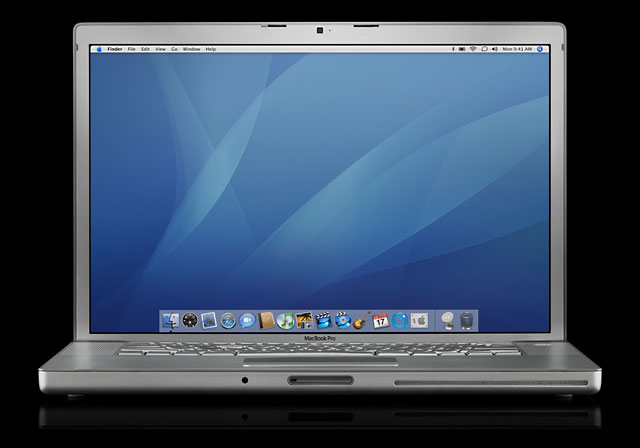
My former employer graciously bought me a Macbook Pro in 2007. It was a 15" (matte) with a 2.4 Core2Duo Intel processor 2GB RAM and a 200 GB hard drive. Having been a Windows user all of my computing life, I was reluctant to get excited about this. OSX had always been touted as a "dumbed-down" OS that prioritized user ease over depth.

The relevance of these claims has all but evaporated with the revolution of app-based programing. Now, ease of use is the premium upon which all OS's set their sights, and it would seem that both Apple and Microsoft have met somewhere in the middle between ease and full customization.

The machine eventually crashed in 2010 due to a faulty graphics processor. If I'm not mistaken, it is an issue similarly related to the XBOX 360 fiasco which involved integrated NVIDIA chipsets that had been cold soldered to the motherboards ("logic board" in Apple jargon). My suspicion is that, just on the cusp of the huge tech boom, manufacturers were attempting to reduce costs in procedures, and the QA got sloppy. So, defective video chips bred death.

The resurrection
The macbook sat on a shelf until just before I left that job, and I asked if I could take it with me, perhaps as a future project. I tried a couple of internet-suggested fixes that only worked briefly before finally replacing the logic board myself and switching out the RAM and hard drives to grant me more resources. Having left that job to become a grad student, I was still using this same late-2007 Macbook pro for all of my personal computing, and it was performing wonderfully.

That is until a month ago when I was suddenly getting kernel panic warnings. These are messages from the computer that basically tell the system that there is a critical fault and must shut down. So, no matter what you are doing, there is no choice but to hold down the power button and shut your computer off.

I had just recently switched out the DVD drive for another hard drive tray to give me even more space for documents and such, and I had a failing fan that was making a ton of noise. In my mind, the kernel panics were related to one of these two issues: bad hardware or overheating. So I purchased and replaced the fan for an excellent used one on ebay for $10, and I removed the superdrive HDD caddy and put everything back as it should be. However, I could not re-install a clean OS because the kernel issues were forcing reboots in the middle of the install. Bottom line: this serious problem was not caused by heat nor the hard drive caddy. It was something worse, something deeper in the machine.

The decision
I had a decision to make: take the risk and put more money into this now-eight year old machine, or start shopping for the next one. I started my decision-making process by investigating just what was on the market for used macbooks (note to readers: I do not buy computers new). What I discovered were a few dissapointing changes to the Apple approach to computing. Let me just say that I consider the 2006-2008 Macbook Pros the pinnacle of laptop computers. They are designed so extremely well (other than the obvious graphics processor issue) and work so reliably that I can't say anything negative about them. They were the best of their time, following the typical format of offering the best current hardware and design. BUT (a big but) newer Macbooks had changed. Since the launch of Apple's Retina line, all of the most advanced computers used integrated technologies: the RAM is soldered onto the logic board and the hard drives use a proprietary connection, meaning upgrades were intentionally impossible.

Obviously, my 2007 Macbook pro would not have survived as long as it did if I was unable to upgrade the components. And knowing this first hand (and now so well), I realized that there was no way I was going to buy a Retina-based Macbook . . . ever. If I was going to stick with a Mac, it had better be able to last another 8 years.

Unfortunately for you, dear reader, I immediately decided on an Apple laptop for a couple of reasons. Firstly, I own a well appointed desktop PC for our family computer and home theater (HTPC). I have spent many years configuring a Windows-based machine that can do all that I need it to without failures, and I have it. But, unlike a Mac, one does not simply take a windows-based machine, back it up, and slam it into a laptop. Instead, one must contend with driver compatibilities and a variety of configurations including one of the many software iterations in each generation. (I'm a big fan of Win 7 Pro, btw.)

My criteria for this next laptop were: a 15" screen, the fastest processor I can afford, and the possibility of hard drive and RAM upgrades. Both 15" screen size and processor speed will make all the difference in price on laptops because they are unable to be upgraded regardless - I accepted this from the outset. What you get is what you get. And, unfortunately for shoppers, Macbooks retain their value very very well over time. The flip side is that differences in price can be only a couple of hundred dollars from one year's model to the next, particularly with little significance in their appointments.

The sad truth about Apple's macbooks 
Why? Because screens, processors, and the bus speeds of RAM and chipsets have changed very little over the past several years.

1) Negligible processor changes.
Here's a comparison of 2012 i7 3rd gen intel processors and the latest up-to-date i7 :

The Q2 Intel i7 in the mid-2012 Macbook Pro
The Q3 Intel i7 in the 2015 Macbook Pro Retina
Notice how the primary difference is in the architecture that serves up the video capabilities from the integrated Intel graphics processor. If your macbook has dual, switching graphics cards (present in upper level macbooks since 2012), then this will likely make little difference in all but he most demanding of graphical applications. I am not saying it makes no difference, as we will see. Keep in mind the bus frequencies which determine the speed at which the CPU and RAM communicate haven't changed. That's right, the DDR3 RAM in the new 2015 Macbook Pro is still operating at the same speed as 2012.

A recent article demonstrates new Macbook Pros are boasting these scores, but what do they mean:
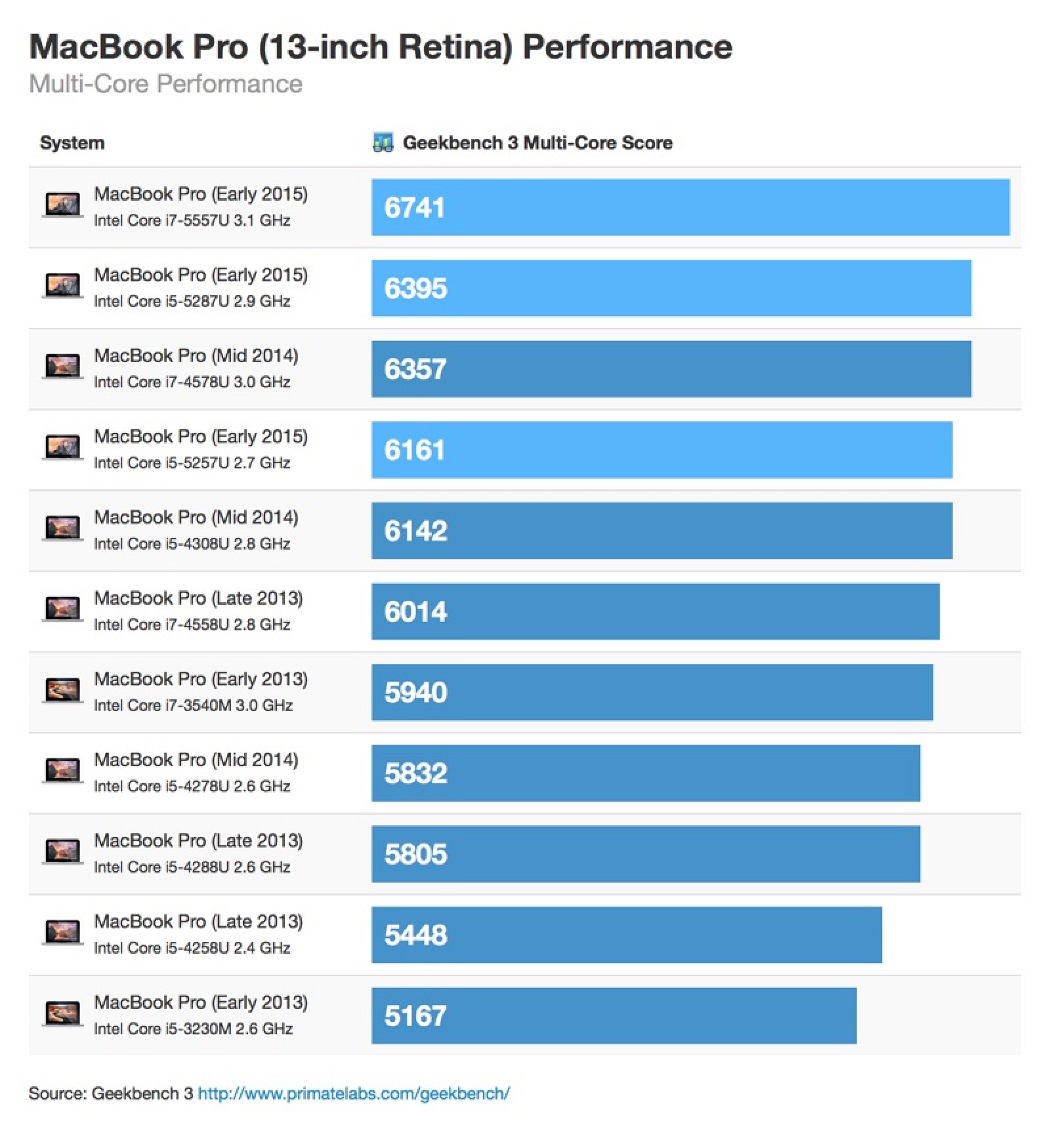
First off, benchmarking scores don't mean much. Personal satisfaction is a far better indicator of performance, imho, and there are as many ways to determine scores as there are companies who want to make the software. So if you try out a macbook from 2013 and find it crawls next to the 2014 model, that's all the benchmark you need. YOu are teh person who is going to use it, and no score can tell you if it suits your unique needs

Nevertheless, a thousand points looks really significant from 2013 to 2014. But will it blow your mind when I tell you the mid-2012 non-Retina Macbook pro (the one that can be upgraded) scores in at 13120? That's correct: the 3-year-old model has almost double the geekbench scores posted here for the newest chipsets. To be fair, I found the early-2015 Retina Macbook Pro at 7230 on the site, so I'm not sure where these results are coming from. Nevertheless, the site clearly says, "Higher scores are better, with twice the score meaning twice the performance." And, again, full discolsure, the highest scoring Macbook pro Retina on the list is the mid-2014, 1500s point above the 2012:

https://browser.primatelabs.com/mac-benchmarks


2) Either no change in display or downgrades.
MOreover, any Retina-based Mac *since 2012*, the year they were introduced, has the same native screen resolution of 2560X1600 (227 ppi). This is exactly the same for a 2015 13" Retina. Three years of the same thing. On the other hand, if you buy the newer non-Retina Macbook Pro in 2014, your native resolution is a very mediocre 1280X800 - that's right, less than the long-standard 1400X900 which my 2007 Macbook Pro had.

3) The ethical dimensions
Couple this with Apple's three-year-old policy of soldering and bolting all of the components so that it can't be upgraded, it starts to make sense: if the average consumer will keep their machines much longer (like me) if they can upgrade them and keep them running by switching out components. But when all of these features are locked down (actually glued in the case of batteries), one is almost forced to treat their computer like a disposable razor. You heard me right: the new Apple took its marketing tactics from the razor brand Gillette. Really, the advent of the Retina display heralded the new mentality at Apple (the year after Steve Jobs died, as well). All of those changes occurred mid-2012 when there were viable options between two classes of macbook. Retinas and non-retinas. Yet, after 2012, 15" Macbooks without a Retina display all but disappeared. Instead, they became a special-order item that no one wanted because they were, in gamer speak, nerfed.

Consider this article in which the feasibility of the continuation of the non-Retina line leads the author to conclude, "If you can live without the DVD drive and spinning hard disk, shelling out £100 for a machine with a better screen, and a lighter, thinner case, is essentially a no-brainer." Which is true for the consumer who has cash to blow to replace an aging Apple laptop with a new one that fits those criteria. Particularly when what non-Retina Macbook pros can be found are actually handicapped by Apple with inferior components and a 13" screen. (You heard right, there is no 15" Macbook pro non-Retina since 2012.) If you wanted to go out and purchase a 15" Macbook Pro, you're locked into to eventualities: 1) they start at $2000, and 2) they are Retina-only, all components are set from the time of purchase and un-upgradable.

The long game 

If these machines are so advanced, and if performance changes are negligible, why would someone who owns a Retina Macbook of any model buy a new one? Perhaps it's because they filled the hard drive and can't replace it? Or perhaps it's because they realized they need more RAM. Ultimately, however, I think the only intelligent reason to buy a newer model Retina is if you change careers and suddenly you can't program or edit video or game like you need to for your career. If these are not your issues, and you've simply run out of necessary resources, I suggest you downgrade . . . Apple expects its customers to need more space because they've marketed their products entirely on speed and performance upgrades (which, reminder, aren't really there). This deliberately neglects the horrible impact of un-replaceable components when there is absolutely no comparable solution that can be upgraded. Apple is saying to customers, "Want to by a laptop you can upgrade? I guess you can have this one, but you're stuck with a smaller screen with worse resolution, and it's an extra $250 to upgrade it to a dual-core i7 with 8GB of RAM, making the cost $2249. The 15" Retina with a quad-core i7 and 16GB is $2000, and the upgraded model with 512GB of SSD space and 16GB RAM is $2500. One is supposed to conclude, like the article above, that you'd have to be stupid to buy the non-Retina. 
mid-2012 MD104LL/A
Why would Apple do this? I believe it is to decrease the longevity of their machines in order to force customers into buying expensive laptops more frequently. The Retina Macbook pro has an extremely fixed lifespan, and I doubt it will be 8-10 years.

The winner
After testing, I discovered the RAM in my 2007 went bad. So I replaced it with a couple of sticks I had handy, and went back to work with it. NOt a hiccup since. Geekbench score: TBD. But the satisfaction of continuing on with the same machine for so many years is a priceless reward. It's also a testament to how sustainability and technology can work together to reduce overall impact. Nevertheless, all of this research got me thinking that Ol' Faithful was eventually going to fail me, and it was best to bite the bullet now, before I was in the middle of writing my dissertation. So after much investigation, I decided that the 2012 Macbook Pro non-Retina 15" was going to be my best price/performance machine. The MD104LL/A is 2012's top of the line model (apart from BTO/CTOs that have an upgraded screen and the 2.7 i7) - this is the 2.6 i7 based laptop with 8GB of DDR3 RAM and a 750GB Hard drive. I recommend it. But only time will tell if it can live up to the quality of it's 2007 predecessor.

Friday, May 3, 2013

Choosing a $400 Tablet Device


So I proposed to my partner that we invest in a new tablet. I suggested one of the new Kindle fire HDs that would add touch capability to my reading, plus media capability, and select Android Apps. As a student prime member already, the device sits very comfortably rooted in the Amazon consumer-system, which I find extremely impressive.

"iPad," was all she said.

The point was clear, "if we're are going to invest in a tablet device, why not go with something better established."

Following her lead I went about the process of investigating three current tablet options on the market to decide between. Here are the criteria I used in order of importance:

1) price - we had a budget of $400
2) productivity - the real reason we needed this thing was to assist in my assignments for school. But media consumption is what all tablets do well, we needed to find something powerful enough to do more.
3) reliability/support - as a student, I'm very poor. I don't need to replace items every 6months to two years. I'd prefer this thing to last my program.

With these criteria, I narrowed down my search to the three best performers, and then tried to make the price point. Here are the contenders:

1) the iPad, in what ever iteration I could find at the price
2) Samsung Galaxy Tab or Note 10.1"
3) the ASUS VIVOTab 10.1" windows 8


If your are searching for a list of the best tablets and why, you should stop here. I'm not including my research, reviews collected, or extensive specs on these models. These are, to my mind the top three tablets I'd be willing to sink my money into. If you would like to know why something did not make the list, feel free to ask. What follows is info on choosing your buying options when the price is fixed and you want to find the best value for the money. Chances are, you already know if you are an apple person or an android person. I have no interest in changing minds either way.


****************

IPAD:
Absolutely everywhere prospective buyers look to research tablets, the iPad is #1 on the critics' list. Apparently the mini and the iPad top out the list, with iPad 3 and iPad 2 falling somewhere down the line. You can find those specs, but allow me to point out that the 3 model adds retina display, and a slightly improved processor, camera, and 500 more Meg's of RAM. Honestly, the display is probably the most important upgrade to factor in when deciding between a 2 or 3. I'm not considering the mini because we decided we wanted the biggest screen for our dollar.

Prices vary by model/ options. For my budget, I'm sticking with WIFI-only, and i use a mental slider to move proportionately from price to storage size ($519-$398). So an iPad 2 might offer 32GB for the price of a 16GB iPad 3. For me storage is important, but I want to integrate my tablet with cloud and home network storage options to access/backup files for school. It isn't as big of a factor to me.

*winning features* the App Store, retina display 3rd an 4th Gs), lots of inexpensive 3rd party apps and accessories, and a solid reputation for build


Samsung Galaxy Tab/Note 2 10.1":
I apologize that I keep lumping these two together, but this is mostly because, like the ipad, they are pretty much the same thing in two flavors. The note has a faster processor, more RAM, and includes a stylus and advanced handwriting functions built in, but, in truth, the tab can do this as well if you make an investment in the stylus and software. As a student I care about this feature. Handwriting notes can be useful in class. Reviews are mixed concerning how either of them actually perform handwriting tasks, though. The resolution is adequate for 720 HD viewing, but not competitive with the iPad, and the use of a proprietary (apple-looking) charge connector is obnoxious. Between the two, the Note wins for performance, and the tab wins on price.The difference between price new is significant ($330 vs $480) but with new models very soon to be released, these costs will go down.

*winning features* SD card slot (!!!) - expandable to 32GB - why more tablets do not offer expandable storage makes no sense to me. Android App Store, solid build reputation, and file system access for better PC integration, bigger screen than iPad.

ASUS VivoTab Smart ME400C 10.1":

Honestly, this is the tablet the world needs. Unlike the VivoTab RT (avoid at all costs) version, this model uses a fully featured windows 8 operating system. Love it or hate it, this is way more functional as a productive workstation than all mobile OSs. It also has a bone fide Intel® Atom™ Z2760 Dual-core CPU @ 1.8 GHz - this outclasses ALL other mobile processors. It won't out perform a fully featured desktop or laptop, but it will cost less than the latter, and be more portable than either. Chances are, this is more processing power than your office PC of 7 years ago - doesn't sound too impressive, until you hold it in your hand or slide it into you purse. The OS allows you to switch between the conventional Windows desktop and the Metro UI which runs apps from the newish Windows App Store. To my mind, reviews of the store seemed lackluster at best with many apps reportedly not ready for prime time. Coupled with the barely HD resolution (1366 x768), and the lack of apps, one should reach for this machine as a workhorse more than a media consumer.

The draw here is that with standard 64 GB of memory and a micro USB port, you can load up most of your windows applications and run them on the go! My goodness, how novel, a portable computer! But seriously, if you want your tablet to do more than spoon feed you more entertainment, this is huge. You'll no longer need to sift through millions of app descriptions trying to find productivity apps that suit your specific needs (check out my forthcoming apps suggestions for students). For me, not paying for an additional set of barely functional office products is a pretty big deal. If you want to go this route, check the windows 8 software compatibility tool on the Microsoft site to make sure you preferred applications will run.

A major caveat, is that the desktop screen resolution is natively very small, making tap-selections a pain with fingers and stylus, not to mention hard to see. But that isn't to say it's ugly or unstable, just not brilliant. There are great demonstration vids on YouTube for the interested.

Price $450

*******************************
Verdict:

I'm not trying to tout the best tablet, merely offer a guide on buying a tablet at $400. All of the models mentioned above exceed this price except the Samsung Galaxy Tab and the iPad 2, so if you want to buy new, those are your options. Both are excellent. The choice will come down to how close to $400 you want to spend, and which AppStore you prefer (apple or android). Seriously, most everything else is a wash.

I'm comfortable buying used or open box, and amazon warehouse has some great options to pick up an iPad 3, galaxy note, or VivoTab smart in used like new condition at or below $400. Never settle for less than like new condition, and personally I avoid refurbished in most cases (Walmart sells cheap refurbished options if that's your thing). Like new can be an open box return or replacement where the item was barely handled. Also, be sure wherever you buy there is a rock solid return policy (usually 30 days). Amazon is the king of no-hassle returns, and it makes sense why they have like new returns in stock, so this is my preferred option.

eBay and Craigslist are viable options, with eBay being the lesser of the two. There are many many shady sellers out there so I recommend caution. Craigslist is a bit safe given you can actually demo the device before you buy it, but that's only if you are comfortable meeting strangers with significant amounts of cash.

The one option on this list that cannot be purchased for $400 dollars used - like new is the new 4th Gen iPad. Amazon sells these new for $470, and used prices do not drop below $430. Curiously, the price of the 4 and 3 are extremely close new, but the used market has a nearly $130 dollar difference. I won't speculate the whys, but so long as this holds, your best iPad option at $400 is the iPad 3.

In the end, we picked up the iPad 4 for $398 at a local best buy (a place I never ever shop). I found this by searching the local open box items online. We were told that the return had no charger with it and was being sold at a discount. The price had actually dropped three times before we got it. To beat all, the charger was actually in the box, under the molded insert! If i had not found the best ipad in this price range, I would most likely have purchased the VivoTab smart by ASUS. For my needs as a student, it is the best all-round option. But, with mixed reviews out there, and price not a decisive factor, I went with the best buy (pun intended). I hope you'll be as lucky, but by all means, check your local stores for like new returns!!


Friday, March 22, 2013

Considering Hard Drive Failure


After a very long and happy relationship, the family PC died. Of course, it waited until everyone relied on it as the sole source of entertainment and then died, but it was a very reliable and happy relationship leading up. This sounds very much like the loss of a family pet - in purely superficial ways, I don't want to trivialize real loss - but I want to offer some coping strategies that might help easy the transition.


Prevention = Backup. Like the necessary hassle of taking a pet to the veterinarian for regular checkups and maintaining shot records, keeping regular with backups is absolutely essential to PC health. For many people, they avoid the lengthy time it takes to initiate a backup until they have a scare of some sort and then start keeping up for a while and taper off over time. What they don't realize is that if they wait until there is a problem, they could be backing up the root cause of the issue. I recommend one start backing up on day one and do it as often as every day - this will cut the actual time the backup takes, it will provide multiple restore points (perhaps prior to contracting a virus), and will keep all changes up to date.
     There are many excellent, and often free, third party backup softwares, but both Windows 7 and Mac OSX have great backup and restore options. I highly recommend a complete backup including a drive image. Due to Mac architecture, a time machine backup is basically an image of the drive by default, but PC users have the option of turning this on or off in Backup and Restore settings. A disk image will greatly increase the size of the backup, but it is worth it not to have to re-install all of your software after a catastrophe. [For an explanation of my preferred method of backup, click here.]

Choosing a New Hard Drive - Considerations. In the same way that choosing a new pet involves asking oneself questions of compatibility, so too will selecting the new hard drive of your machine and they are: cost, storage size, performance, and warranty.

Cost:
Give yourself a budget, and search around. Prices fluctuate from site to site. Absolutely do not walk into a retail store until you've checked online prices - there can be HUGE differences.

Size:
 Bigger is not necessarily better in terms of hard drive space. I don't recommend buying a new system drive over 500GB unless you intend to buy a secondary drive of the same size as a backup. System disks are the location of all of your system operation files and, in most cases, the location of your software as well. If you are both storing all of your files and running all of your programs from the same place, especially when you are storing huge amounts of data, then some bottlenecking can occur and performance will be reduced. In most cases, this will be unnoticeable, but not always. If the drive is being used only for storage, however, get as big as you like, but keep in mind, the more information you store on a drive, the more you have to lose in a catastrophe. So, again, I recommend buying two and backing up your backups or using some cloud-based storage service if your needs exceed being able to physically provide a solution on site.

Performance
: The rule of thumb used to be that if you wanted a better performing hard drive, you had to buy a 3.5" drive for your desktop. This is no longer the case. Now, 2.5" laptop hard drives are just as fast and offer all the same features in a smaller footprint. In fact, advantages are often that laptop format drives are also cooler and require less power to operate as well as being able to compensate for movement and drops. In my latest foray into HDD purchasing, I actually found that they were cheaper, too. So ignoring the physical size of the drive, the performance will depend on the spindle rate (5400,7200, 10,000 or 15,000rpm) and firmware technologies. Most drives are in the 54-7200 spindle speed bracket. The upper registers will cost significantly more because the technology to create these speeds requires some physical changes in disk access, but moving from 54 to 72 can give considerable performance gains as well.
Another factor is AF (advanced format), you may want to monitor whether your new drives support the AF functionality as, at the time I am writing this, software does not use the AF function and the drives are forced to compensate for the older format. Interestingly, I found in my drive selection process that Western Digital drives did not clearly indicate whether a drive was AF while Seagate did. I find this a little disturbing because there are some clear cases of incompatibility, so I recommend you do your homework before making a purchase - particularly if you are using WinXP or Vista.

Warranty. It sucks, I mean it really really sucks when your machine's HDD dies and all of your collected junk goes missing. If the failure is irreparable and you have no backup, it's really really gone. The only possible solution is to send the drive off for data recovery which is really expensive, and still not a guarantee that any or all of your data can be retrieved.  However, one silver lining might be to get a replacement drive, at least. In my latest disaster, I was able to purchase a drive with a 5 year warranty over a 1 year for only $5 more per drive - it was even the same brand and better specs. Immediately after buying the drives and installing, I'd recommend you immediately register the products at the company website. This will smooth out the RMA process in case of a failure, and you will already have an account with the support site.


Additional Considerations. Is your computer set to use AHCI? Current motherboards have the option to turn on AHCI in the BIOS. Presently, the jury is out on whether using AHCI improves performance. In my case, it was required to open up all the SATA ports and  had the added benefit of allowing hot-swapping of my many drives. It isn't the hidden issue that AF is, but it can be tricky. If you have to do a new install of your OS (up to Windows 7 SP1), AHCI is turned off by default. I have no idea what the logic in this is because all that this element does in windows is not to accept a start up in the interface format even though all of the necessary features are already there and running. So if your board is set to AHCI, and your previous install was operating in AHCI before the failure, you'll need to turn this off in the BIOS and turn on AHCI compatibility in Windows before the feature can be used. In my case, the machine would not boot up, even after this process was properly carried out, until I removed my incompatible SATA DVD drive from the boot sequence.

Wednesday, March 7, 2012

Using Groups in Forums

Using Groups in Forums


Many faculty need to find a way to divide discussion into smaller units. The best method to do this is to use the groups feature. Groups are established by selecting "Manage Groups" under the Site Info tool. Here, select "create new group", on the next page choose a title, a description (if needed), and choose the students to add to the group by selecting the name in the box and pressing the > button to move them into the active box.

Once the groups have been created, move to the forums tool to create new discussion topics for the specific student groups. As you can see from the example below, a discussion topic has been created for each of the student groups. You can establish discussion topics for your groups with whichever titles you choose, whether that be groups names, discussion topics for each group, or some other organizational method. However, you must create a discussion topic for a particular group because threads within each topic will not allow specific permission levels to be set. As we see from the example, the instructor has chosen to organize the discussion topics under the auto-generated "HTS2821 12SP" forum. If you would like to create a new forum for group-specific discussions, you may do so by creating that forum, and then creating the discussion topics for the individual group. In most cases, however, the default forum will be adequate.

When creating discussion topics for each group, the option to limit participants to a specific group is found under the permissions section of the settings. You must first select the role whose permission settings you wish to change, then change the permission level in the drop down below.  In the top drop down box, first select the "student" role from the list, and in the drop down below this select "none." This will restrict access from the general student roster.

Next, select the respective group you wish to give access to the discussion thread from the top drop down, and select "contributor" from the drop down below.

Repeat these steps in while creating the discussion topics for each of the groups, and you now have a customized, group-specific discussion thread for your students.

Friday, March 2, 2012

Upload New Version


Upload New Version: My Workspace Files

One of the nice features of the Sakai interface is the ability to re-upload a document in exactly the same location as a previous version. This works extremely well for two particular applications.


First, we have recommended to our faculty that they try to always store course files and official documents related to classes in well organized folders under the resources of their personal workspaces (My Workspace). This adds the security of having one official copy always available online, accessible from anywhere they have internet access, constantly backed up for security, easily moved into new courses, and - with "Upload New Version" - easy to update.

Using the action drop down, one can select to upload a new version of any file in the list of items within a folder. A very common application of this in My Workspace resources will be syllabi. Each time a course syllabus changes, one can upload a new version directly into the same location as the old syllabus. This will keep the syllabus item in that particular course folder current. **As always, we recommend uploading all document for courses in pdf format. This will guarantee that no editing or changing of the document will accidentally happen as a student opens of reads it.

To summarize, the workflow looks like this:

1) Open the original syllabus document on your machine

2) Edit the document and save

3) Save (or print) the document as a pdf version

4) Upload New Version of the document in place of the existing pdf on Sakai.**

5) Done


 Upload New Version: Dropbox Files

The second highly useful employment of this feature is in the case of grading items in the dropbox. Keep in mind, if you are using the Assignments tool to release assignments and grade them, you will not need to use the "Upload New Version" feature because you can simply add and the graded copy as an attachment when you grade the student's work (see right).

However, in the dropbox, submissions are dropped in manually, and the grading for these submissions is entered manually. Therefore, there is no dialogue box within which to return the graded submission, nor a place to enter comments on the graded work. This must all be handled manually. For this reason, "Upload New Version" is a brilliant tool. The workflow operates the same way as outlined above. One can open a student submission in the drop box, track changes and grade the submission, save a local copy to her/his computer and re-upload using "Upload New Version." The will only see the same document in the same location (including url) only, after you have uploaded after grading, Sakai will indicate that it was uploaded by you, the professor.

Admittedly, this is not quite as refined a process as was the case for Sharepoint. Surely, many of you will miss the ability to open the file directly from Sharepoint, make your edits and comments, and save the file directly back to Sharepoint. I will miss it too. However, the extra steps to save the file, make corrections, save it again and upload a new version actually make the process safer with data handling than the former Sharepoint option.

A Word of Caution: File Formats

**Remember, because you are presumably uploading the same document, just in a revised form, you want to be very sure to upload the same file format. In other words, do not upload a Word docx file as a new version of a pdf (or vice versa). If you try that, you'll get some form of this:


In the case of student papers in dropbox, this will not be a very big issue. The files will (hopefully) be submitted in word format, you will open them in word format, and you will save and re-upload them in the same format. No problem. The issue is more pronounced when it comes to the syllabi. You will need to remember to save your Word-created syllabi into pdf format before re-uploading the file to replace the current pdf version on Sakai.


Friday, January 20, 2012

Gradebook: Part 2 - Advanced Features

Advanced Features:


In addition to the uses of the Gradebook outlined in the previous post, the gradebook allows for a couple of additional ways to tailor your course grades to suit specific situations.

fig. 3
Group assignments - Groups can be created in courses by selecting the Site Info tool and clicking "manage groups". Here, one can title each group (by project, number, discussion group, etc.) and select the students that will be included. Once groups have been created, an assignment can be generated for only the members of specific groups so that students who opt for a different assignment are not affected by the grading of a particular grade. To do this, select "display to selected groups" under the Access heading while creating the assignment. Then select the appropriate group (fig. 3). Having done this, one will only find the members of that group when one enters the gradebook scores.

fig 4
Grade Weighting - Weighting grades in courses is done by entering the Gradebook tool, and selecting the "gradebook setup" link. Here one can assign weights to grades using the "categories and weighting" feature (fig 4). After choosing this option, one can enter the categories of grades (final paper, exam 1, class participation, etc.) and assign a percentage value to each of these until the 100% total is reached. A gradebook item can only be associated with a category in the Gradebook tool, not while creating the assignment itself. The categories will appear in boldface titles among gradebook items within the Gradebook tool (fig 5). 

fig 5
To associate an assignment with a particular category, simply click "edit" beside the item, and choose the appropriate category from the category drop-down (fig 6).


fig 6


Friday, January 13, 2012

Gradebook: Part 1

The Sakai CLE includes a Gradebook tool for conveniently managing graded assignments. Grades can be posted in two forms: assignments created within Sakai, and assignments given outside of Sakai.


Sakai Assignments:

fig. 1
As mentioned in a previous blog, there are a variety of ways to build assignments into your course sites. With the gradebook tool enabled (this is by default in the latest course template), one has the option to to automatically include scores generated from assignments and forum posts in the site gradebook. For scores generated by the assignments tool, simply select the "add assignment to gradebook" button under the grading options when creating the assignment (fig. 1 above). **Note:  the appropriate grade scale must be selected above the assignment instructions dialog box. Under the gradebook options link in the gradebook tool, one has the option to base the gradebook on points or percentages, for gradebook integration, one must use the points system (set by default) so be mindful of which you are using. Otherwise, you may receive an error message if there is any discrepancy.

Outside Assignments:

fig. 2
To manually enter grades for non-sakai items such as class presentations, participation grades, or others, a gradebook item can be created by clicking the gradebook tool and selecting the "add gradebook item" link under the Gradebook Items heading. One may then give the item a title, point value, and due date. One also has the option to notify students when the item is graded, and to include in course calculation.


In the next post, we will cover additional ways to use the Gradebook with groups and weighting.